How to Compress Images Online — PNG, JPEG & WebP (Free & Fast)
Large image files slow down your website, hurt your SEO rankings, and frustrate visitors on mobile. Whether you are working with PNG, JPEG, or WebP images, ImageConvert.pro's free online image compressor reduces file sizes in seconds, directly in your browser, with no account or software required.
Compress Your Image Free →Author: ImageConvert Team | Published: May 8, 2026 | Reading Time: 5 min | Category: How-To Guides
Why Compressing Images Matters
Image compression is one of the highest-impact optimizations you can make for any website, blog, ecommerce page, or SaaS dashboard. It improves speed, keeps users engaged, and supports stronger rankings in search. Teams often spend hours debating frameworks, caching, or script loading, while oversized images quietly remain the largest payload on the page. Compressing images first is often the fastest win, especially when you run assets through a dedicated image compressor before publishing.
- Faster Page Load Speed: Images are typically the largest files on a webpage. Compressing them directly improves Core Web Vitals, especially LCP.
- Better SEO Rankings: Google PageSpeed Insights and Lighthouse both flag unoptimized images as a critical issue.
- Lower Bandwidth and Hosting Costs: Compressed images use less transfer and storage, which matters more as traffic grows.
- Better Mobile Experience: Mobile visitors on slower networks get faster content rendering and less bounce risk.
Pro Tip: According to Google, pages that load within 1 second can convert up to 3x better than pages that take 5 seconds. Image compression is one of the fastest ways to move toward that target.
What Is Image Compression?
Image compression is the process of reducing an image's file size while keeping quality at an acceptable level for the destination. The right destination matters: a homepage hero image, an ecommerce product photo, and a tiny logo icon do not need the same export policy.
Lossy Compression: Permanently removes selected image data to reach much smaller file sizes. At quality ranges around 75 to 85, changes are usually imperceptible for normal web viewing. This mode is ideal for JPEG photos, blog banners, and marketing content where performance matters more than pixel-for-pixel fidelity.
Lossless Compression: Shrinks file size without data loss. The image remains mathematically identical to the source. This is best for PNG logos, UI graphics, screenshots, and assets where crisp edges or transparency must remain intact.
ImageConvert.pro supports both modes so teams can choose the right quality-versus-size balance for every use case instead of forcing one setting across all images. For modern delivery pipelines, pairing compression with PNG to WebP conversion often produces the best quality-to-size results.
How to Compress Images Online — Step by Step
Follow these 5 steps to compress PNG, JPEG, or WebP images for free. If you want to start immediately, open the ImageConvert.pro Image Compressor in a new tab and complete each step as you read.
Step 1 — Go to the ImageConvert.pro Image Compressor
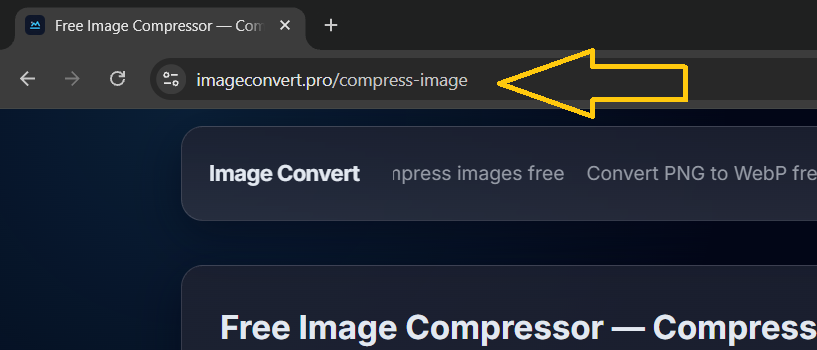
Open your browser and visit imageconvert.pro. Navigate to the Image Compressor tool from the navigation or homepage. No account, installation, or subscription is required. You can also jump directly here: https://imageconvert.pro/compress-image.
Step 2 — Upload Your Image
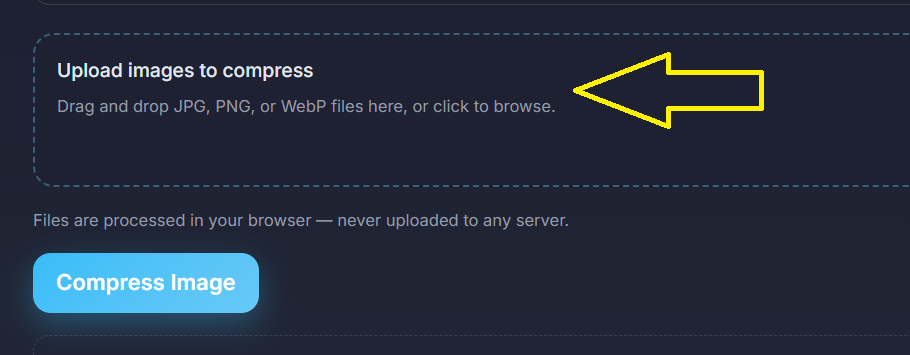
Click the upload area or drag and drop your file directly into the tool. ImageConvert.pro supports PNG, JPEG, and WebP. You can upload multiple images at once for batch workflows, which is useful when optimizing galleries, blog image sets, or product libraries.
Step 3 — Select Compression Mode and Settings
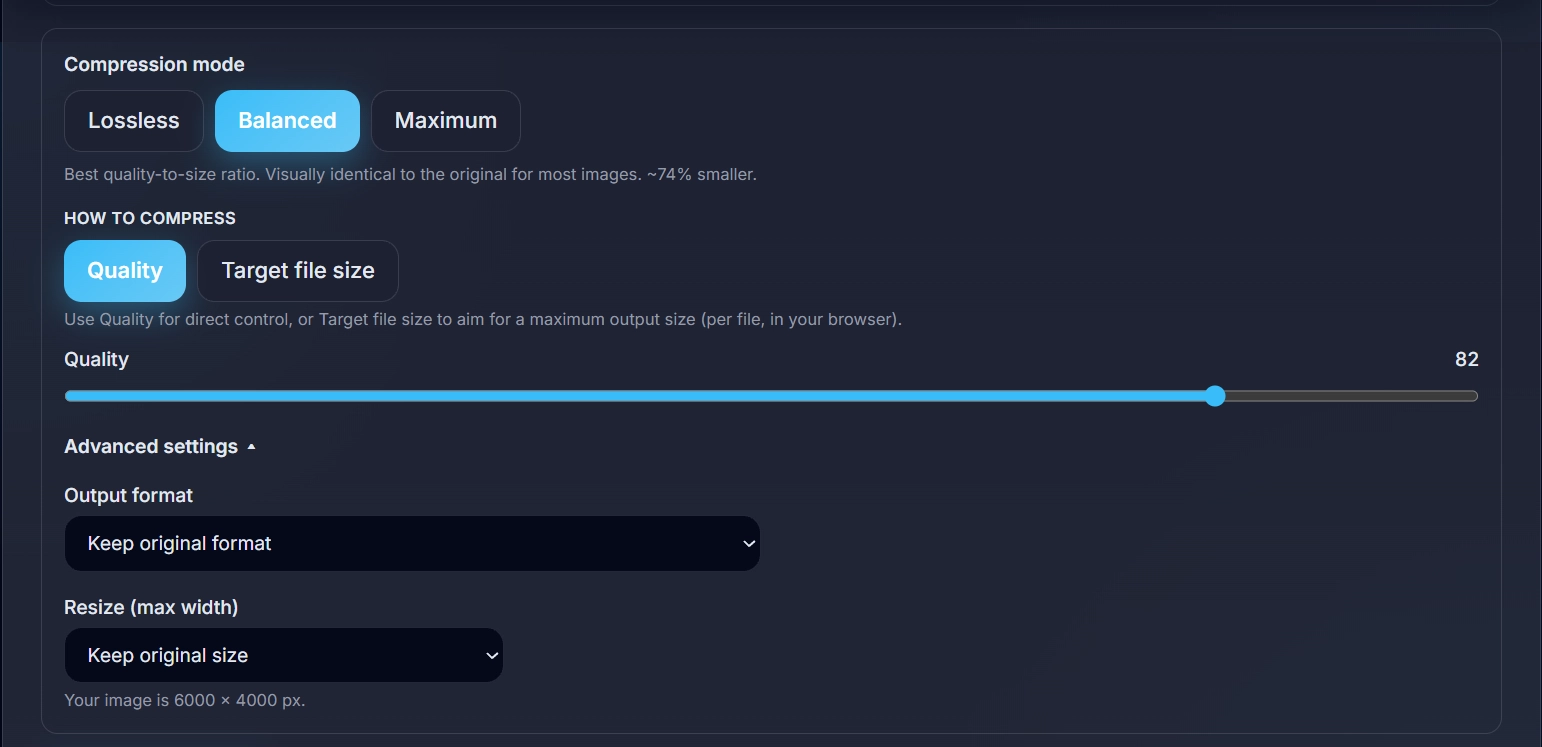
Choose Lossy for maximum reduction or Lossless when image fidelity is critical. Adjust quality settings to control the final output size. For photos and banners, lossy settings around 75–85 are usually ideal. For logos or interface graphics, lossless is often the better choice.
Step 4 — Click the Compress Image Button

Once settings are ready, click Compress Image. The tool processes quickly and returns optimized output in seconds. This step is where most users immediately see a meaningful reduction in payload size without visible quality loss.
Step 5 — Download Your Compressed Image
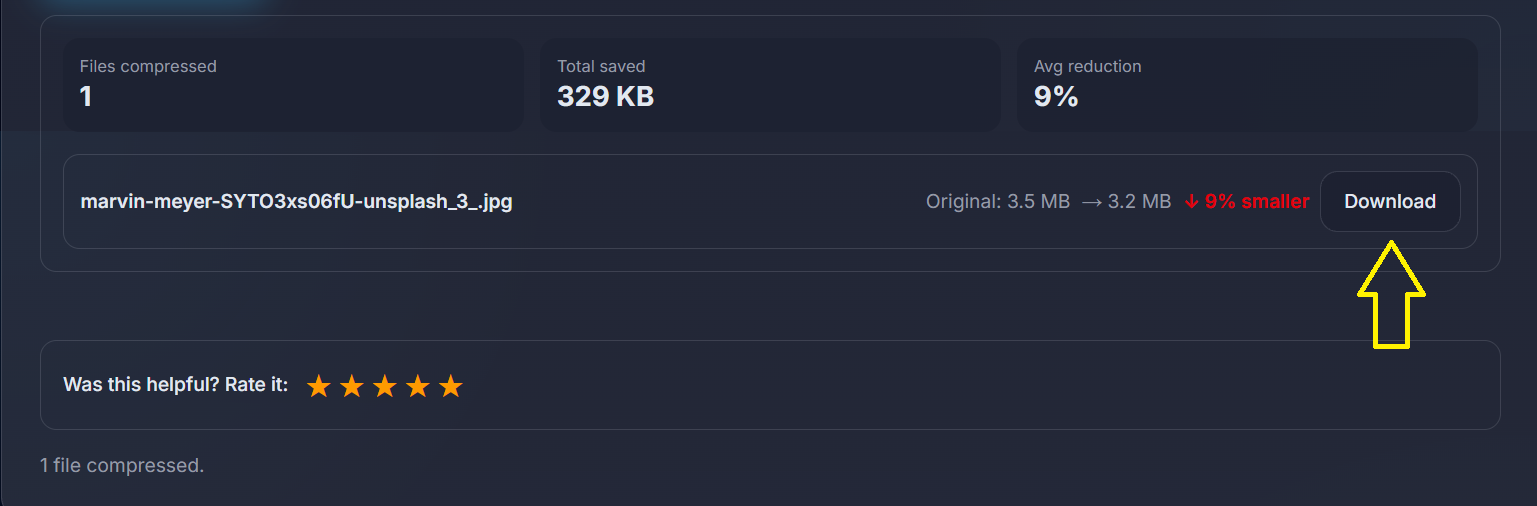
Click Download to save your optimized file. Compare before and after sizes to verify compression results. For most web assets, reductions between 50% and 80% are common when format and quality are selected correctly.
PNG vs JPEG vs WebP — Which Should You Compress?
Not all formats behave the same. Use this quick matrix when deciding what to optimize first.
| Format | Best Use Case | Compression Type | Supports Transparency |
|---|---|---|---|
| PNG | Logos, icons, screenshots, UI assets | Lossless | Yes |
| JPEG | Photographs, hero banners, blog images | Lossy | No |
| WebP | All web images (replaces PNG + JPEG) | Both Lossy/Lossless | Yes |
Key takeaway: for most web publishing workflows, WebP gives the strongest compression-to-quality ratio. For a deeper decision framework, read our full JPG vs PNG vs WebP comparison guide.
Tips to Get the Best Compression Results
- Use WebP for web-facing images whenever possible for the best quality-to-size outcome.
- For JPEG photos, lossy compression around 75–85 usually keeps quality visually intact.
- For PNG logos and UI graphics, use lossless mode to preserve sharp edges and alpha transparency.
- Compress before uploading to your CMS, ecommerce platform, or page builder with ImageConvert's compressor.
- Aim for under 100KB for standard web images and under 200KB for large hero visuals.
- Validate your improvements with Google PageSpeed Insights after optimization.
Why Thousands of Users Trust ImageConvert.pro
100% Free
No hidden fees, subscriptions, or credit cards.
No Signup Required
Open the tool and compress immediately.
Privacy First
Images are not stored on our servers.
PNG, JPEG, WebP
Supports the most important web formats.
Batch Compression
Compress multiple images in one session.
Real-Time Preview
Compare original vs optimized before download.
Fast Processing
Cloud-backed speed for quick results.
Works Everywhere
Browser-based on desktop, tablet, and mobile.
Frequently Asked Questions
How do I compress an image online for free?
Go to ImageConvert.pro, open the Image Compressor tool, upload your PNG, JPEG, or WebP image, choose your compression settings, click Compress, and download the result. It is completely free with no signup required.
Does compressing an image reduce quality?
It depends on the mode. Lossy compression reduces file size significantly but may slightly reduce quality, usually unnoticeable at 75–85% quality. Lossless compression reduces size with zero quality loss. ImageConvert.pro supports both modes.
What image formats can I compress at ImageConvert.pro?
ImageConvert.pro supports PNG, JPEG, and WebP image formats.
Is there a file size limit for image compression?
ImageConvert.pro allows you to compress images for free without an account. Visit the tool page for the latest information on file size limits.
What is the best format to compress — PNG, JPEG, or WebP?
WebP is the best choice for web images. JPEG is ideal for photos. PNG is best when you need transparency, such as for logos and icons.
Is ImageConvert.pro safe to use?
Yes. Your images are processed in the cloud and are never stored on ImageConvert.pro's servers. Your original files remain on your device at all times.
You Might Also Like
JPG vs PNG vs WebP — Which Image Format Should You Use?
A full side-by-side comparison of the three most popular web image formats covering quality, file size, browser support, and when to use each.
How to Compress Images for the Web (Without Ruining Quality)
A practical workflow for selecting formats, compression levels, and target sizes for fast-loading pages.
How to Reduce Image Size Without Losing Quality
Learn how to preserve image clarity while lowering payload size for better Core Web Vitals and SEO.